

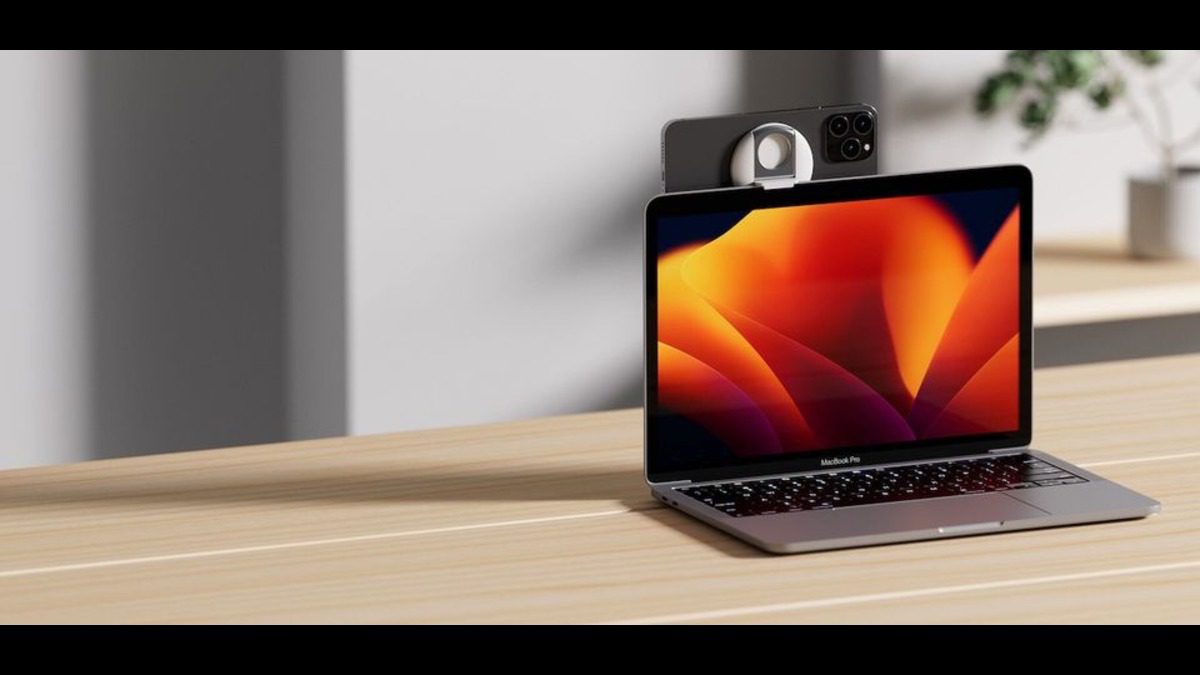
Let’s be brutally honest: most built-in laptop webcams are trash. Washed out, pixelated, and completely unforgiving when it comes to lighting. If you’re in meetings all day, streaming, recording content, or just trying not to look like a potato on teams, you need something better.
The good news is, If you own an iPhone and a Mac then you’ve already got one of the best webcams in the business sitting in your pocket. It’s called Continuity Camera, and it’s one of those Apple features that quietly launched with macOS Ventura and iOS 16, but punches way above its weight.
This is your step-by-step, everything-you-need-to-know guide to using your iPhone as a wireless, high-quality webcam for your Mac.
What Is Continuity Camera?
Continuity Camera is Apple’s clever feature that lets your iPhone act as a webcam or microphone for your Mac — no third-party software, no cables required (though it supports USB too), and zero setup headaches.
It’s not just about improving image quality. It also gives you:
- Significantly better low-light performance
- Sharper video thanks to the iPhone’s superior lenses
- Enhanced video effects like Portrait Mode, Center Stage, and Studio Light
- The slick Desk View mode that mimics an overhead camera
Whether you’re video calling, streaming, recording tutorials, or making content, this is a serious upgrade to your setup — and it’s free.
Minimum Requirements
Before you start, check these boxes:
Hardware:
- iPhone XR or newer (anything older won’t work)
- Mac running macOS Ventura or later
- A mount, tripod, or stand to hold the iPhone in position
Software & Settings:
- iOS 16 or later on your iPhone
- Wi-Fi and Bluetooth enabled on both devices
- Both devices signed into the same Apple ID, with Two-Factor Authentication enabled
- Devices must be unlocked and near each other
Step-by-Step Setup: Getting Started
1. Enable Continuity Camera on iPhone
It’s usually on by default, but here’s how to check:
- Open Settings → General → AirPlay & Continuity
- Toggle Continuity Camera ON
2. Position Your iPhone
Use a mount or tripod. I use the Belkin MagSafe mount which I purchased on takealot, that clips onto your MacBook lid. Or just use a cheap desk tripod — anything stable works.
Make sure the phone is:
- In landscape mode
- Rear camera facing you (it uses the rear cam by default for best quality)
- Aligned roughly at eye level
- Not in Low Power Mode (this may affect performance)
3. Open Any Video App on Your Mac
Whether it’s FaceTime, Zoom, Google Meet, QuickTime, or Microsoft Teams, your Mac will automatically detect the iPhone as a video source.
To confirm or manually select it:
- Open the app
- Go to the video settings/preferences menu
- Look for a camera labeled “iPhone Camera” or your device name
Camera Modes & Video Effects: What You Get
Once your iPhone is connected, you unlock several exclusive features you just don’t get with your Mac’s built-in webcam:
1. Center Stage
Uses the ultrawide lens to track and keep you centered as you move — great for walking or standing calls.
2. Portrait Mode
Adds that beautiful background blur (bokeh) like you see in DSLR photography. Helps separate you from the background in a busy room.
3. Studio Light
Brightens your face and subtly dims the background, simulating professional lighting.
4. Desk View
This one’s genius: uses the ultrawide lens to simulate a top-down camera angle, even though the phone is mounted upright. Great for showing your desk, sketching, or demoing physical products.
To enable these:
- Start a video call or recording
- Click Control Center (top-right on your Mac)
- Click Video Effects
- Toggle effects on/off in real time
Tip: Effects like Desk View and Center Stage require an iPhone 11 or newer (excluding SE and 16e) and only work when the phone is mounted horizontally.
Use iPhone as a Microphone (for Better Audio Too)
Even if you’re happy with your Mac’s built-in webcam, using your iPhone as a mic can dramatically improve your audio.
To enable it:
- Go to System Settings → Sound → Input
- Select [Your iPhone] from the list
Or inside your video app:
- Look for the audio/mic settings
- Choose iPhone Microphone as input
Result: Clearer vocals, better ambient rejection, and a more professional sound.
Advanced Tips & Troubleshooting
Battery Drain
Continuity Camera can be battery-intensive, especially with Studio Light or Center Stage. Keep your iPhone plugged induring long sessions.
No Connection?
Try this checklist:
- Are both devices unlocked and on the same Wi-Fi network?
- Is Bluetooth turned on for both?
- Are you signed into the same Apple ID on both devices?
- Restart both devices
- Try connecting via USB if wireless isn’t reliable
Privacy Indicators
When your iPhone camera is active:
- A green LED lights up near the lens
- A message appears on-screen: “Connected to [Mac Name]”
Nothing is recorded or transmitted unless you explicitly select your iPhone as the camera or mic source.
App-Specific Tips
Continuity Camera works natively in most apps — but here’s how to manually select it in popular ones:
Zoom:
- Go to Preferences → Video
- Choose “iPhone Camera”
Google Meet (via Safari/Chrome):
- Click the gear icon before joining the call
- Select iPhone as your Camera
OBS Studio:
- Add a video capture device source
- Choose your iPhone from the input list
QuickTime:
- Open QuickTime Player
- Choose File → New Movie Recording
- Click the small arrow next to the record button
- Choose your iPhone as the camera and mic
Final Thoughts: Why This Matters
You could spend R2000–R4000 on an external webcam , or you could use the iPhone you already carry, which blows most webcams out of the water in quality.
Apple’s Continuity Camera is one of the most seamless, genuinely useful features in the macOS/iOS ecosystem. It requires no cables, no drivers, no subscription, and delivers pro-level video and audio instantly. For remote workers, content creators, teachers, or even just families FaceTiming across the country, this is a game changer.
You’re holding a 12MP or better camera in your hand. Why not put it to work?
